

Score Cinema · User guide
How Score Cinema works
After practising a piece from your library, an interactive book or the public-domain catalogue, turn your performance into a music video with a synchronised moving score. Start with an eligible MusicXML score and synthesised sound, or use Creator to add your MIDI performance, recording or performer footage. Preview the alignment and visuals before exporting; source permissions still apply.
Open Score CinemaYour first video — with Free
- Choose Try a sample, upload MusicXML/MXL, or open an eligible library/Drive score.
- Choose a frame and a gallery style. A gallery sample is only a preview until you choose Use this style.
- Play Preview. Keep score-generated sound and an automatic camera for your first Free video.
- Open Export video, choose 720p, keep branding and switch any listed Pro settings to their Free alternatives.
- Sign in, create the video, then open Output to preview and download it.
1. Start with a score
Use MusicXML or compressed MXL notation, the bundled sample, or an eligible library/Drive project. You can also open Cinema from the score player.
PDF files can be stored in Drive, but Cinema needs MusicXML notation. It does not directly turn a PDF or audio recording into a score.
Book access and Creator features are separate from source permission. Reading a book or subscribing to Creator does not automatically allow exporting its music. Check the edition licence and rights to recordings or images before publishing a video.
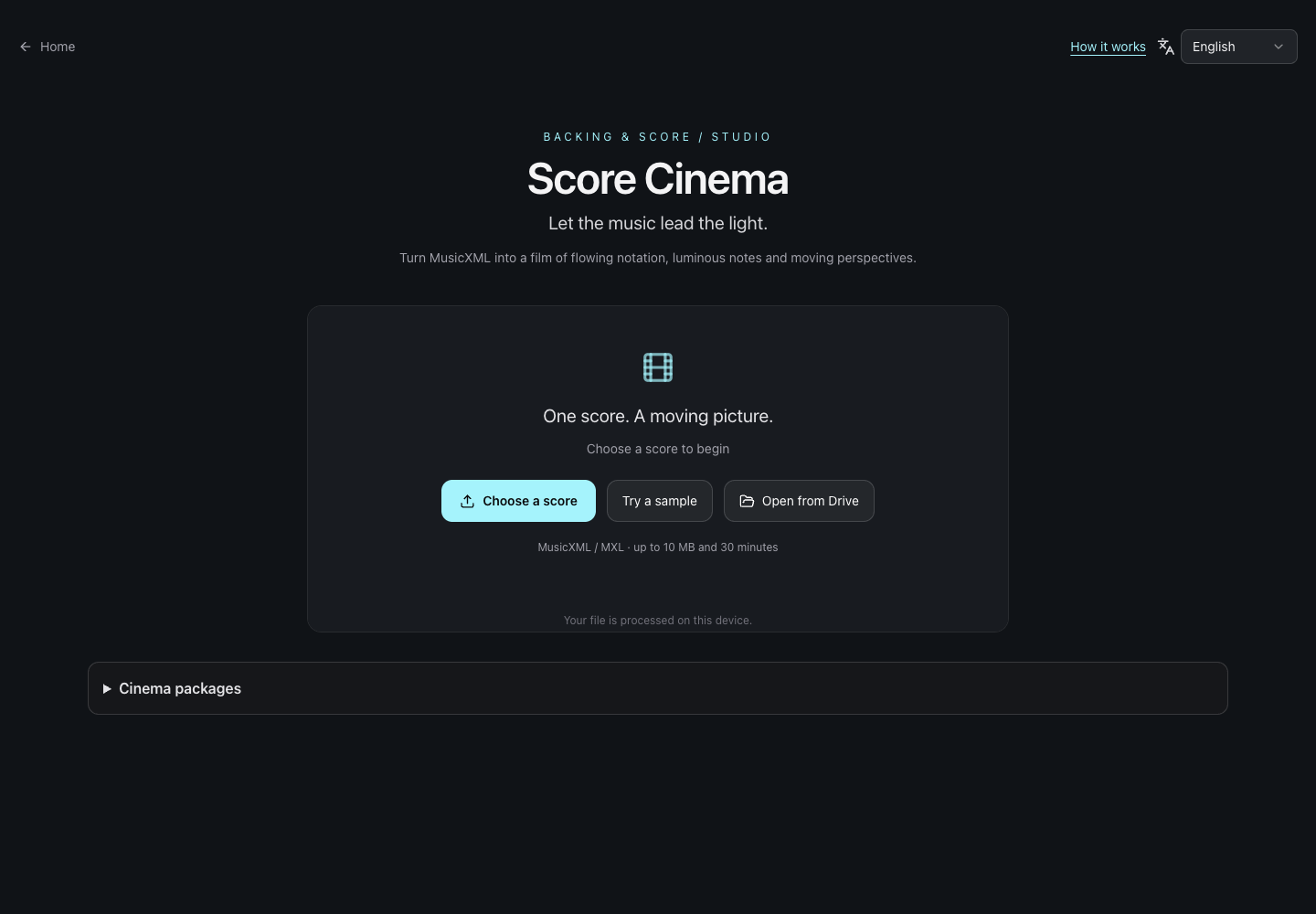
- Upload a MusicXML/MXL score.
- Try the bundled sample.
- Open a score saved in Drive.
2. Find your way around
Current and Studio are two layouts of the same film. Studio adds an overview timeline and an inspector: select an item to open its controls. The detail dock provides MIDI, performance and camera/direction editing.
Direction controls framing, camera motion and scenes; Appearance is the single style library and controls scenery, materials, relief height, light and effects; Content controls titles and annotations. Finish or cancel an unfinished edit before switching items or exporting.
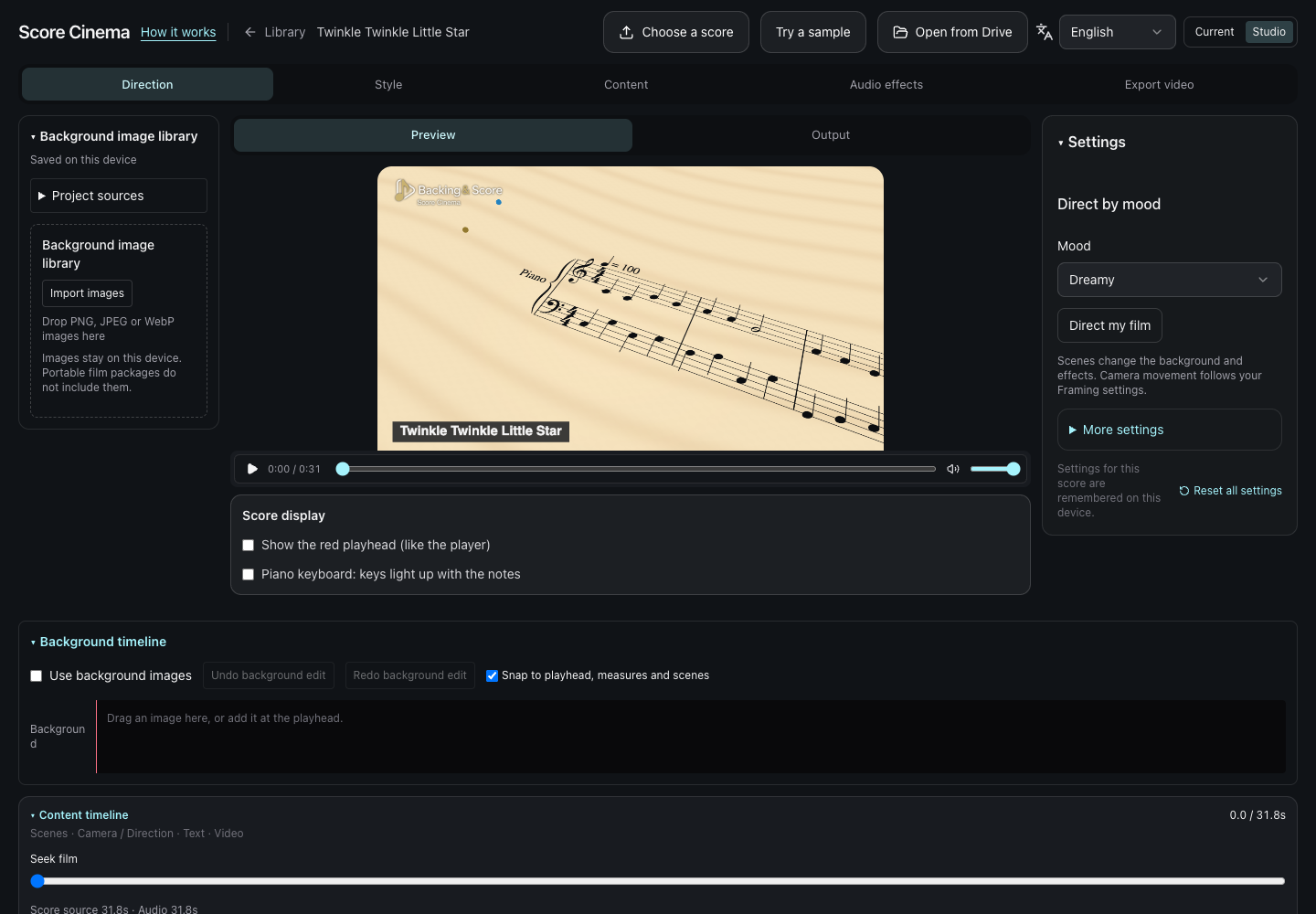
- Switch between Current and Studio.
- Adjust the selected item in the inspector.
- Select content on the overview timeline.
3. Choose a style
Search the gallery by name, collection or mood; save favorites and revisit recently applied styles in this browser. Gallery pictures are still samples. Preview your own film after applying a style.
Read the scope label. In Studio, selecting a directed scene applies the look to that scene. If scene direction or mixing is active without a selected scene, use the scope action to open its settings. Gallery application preserves music, camera, timing and text. Undo style restores the previous appearance while available.
Some presets use paid effects or scene settings. Check Export after choosing a look. Free effects include sparks, ripples, legato, stardust and paint; premium effects include reflection, dynamics, dust, finale, cinematic lens, weather and shake.
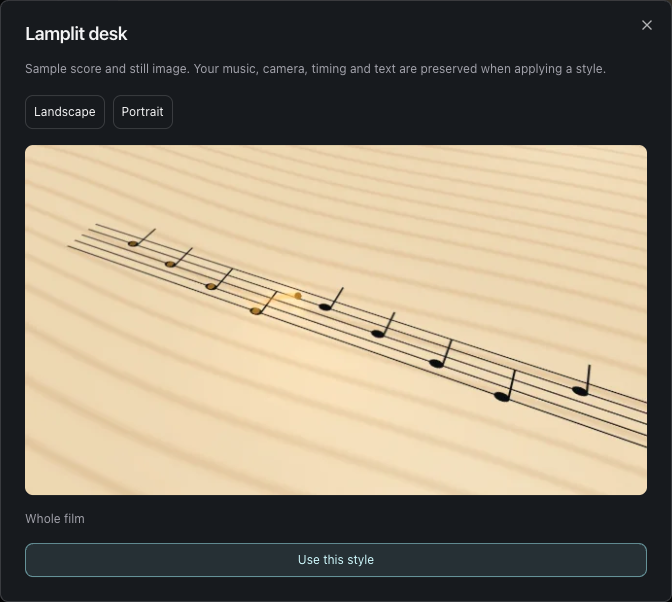
- Compare landscape and portrait samples.
- Check which part of the film will change.
- Apply only when you choose Use this style.
4. Add background photos
Import PNG, JPEG or WebP in the image library. Add an image at the playhead or drag it onto the background timeline. Select a clip to adjust timing, crop/fit and treatment for your current frame.
Use one image for the whole film with an empty timeline, or build a sequence with cuts and dissolves. Gaps return to built-in scenery. Preview the output frame and repair missing images or invalid timing before exporting, or turn off the track.
Photos and their timeline stay on this browser/device; if storage is unavailable, they may last only for the session. Keep the originals. Portable ZIP/JSON packages do not include them.
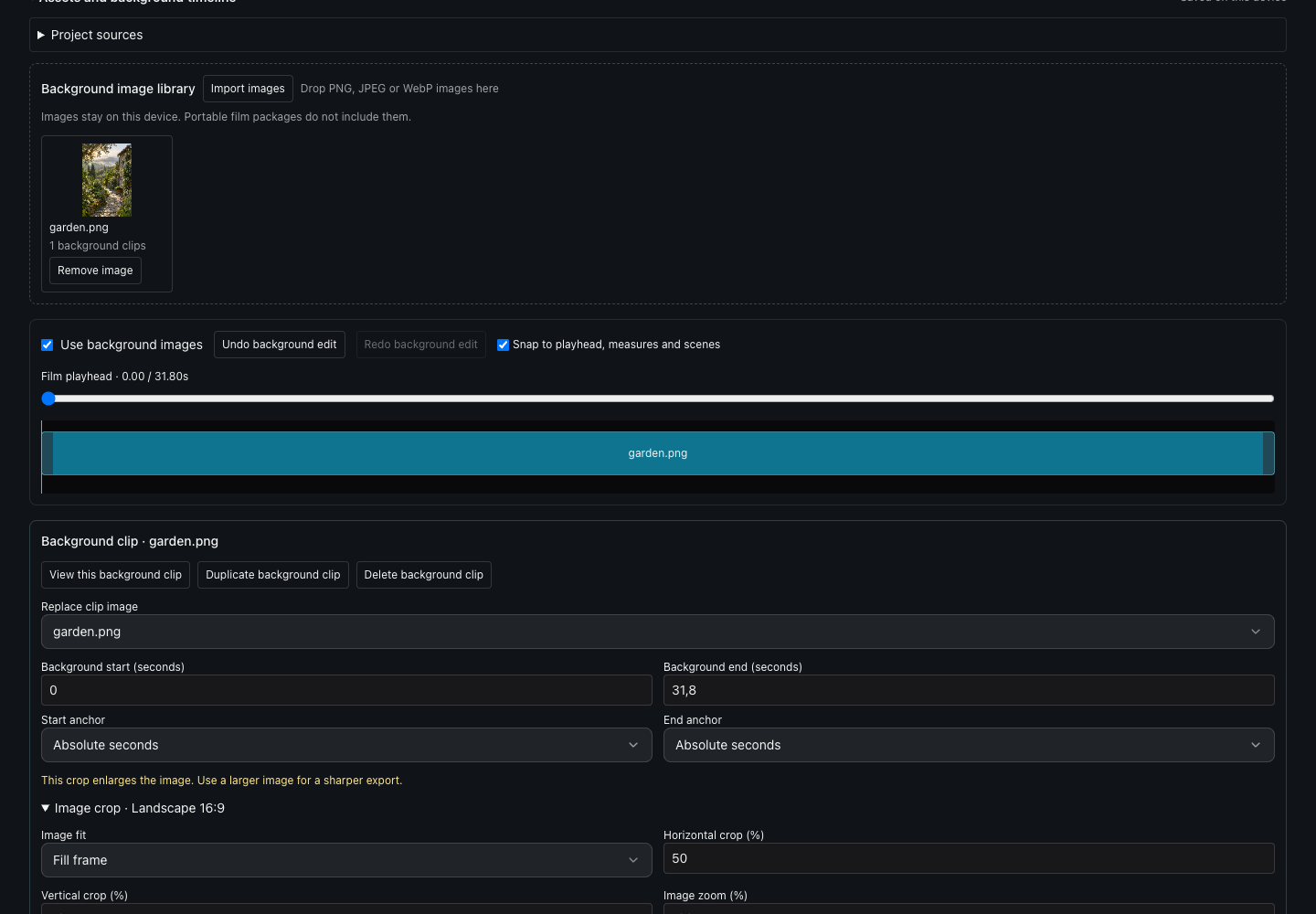
- Select a photo clip to edit it.
- Adjust crop for the current output frame.
5. Make text your own
In Content, choose the title, composer, caption role or a specific annotation. Use a preset or adjust font, size, color and card styling. Each caption can inherit the caption role or have its own formatting; Undo typography and reset help you recover.
Read fonts on this device requests access to installed fonts. Start with Popular fonts, or choose Show all fonts and search. Selecting a family immediately applies its default face; then choose a face if you want another weight or style. Visible specimens help you compare fonts.
If local font access is unavailable, use the default font and adjust size, color and background. Saved fonts may need reconnecting after reopening; replace a missing font or use the default. Shorten text or reduce its size if it does not fit. Custom typography stays on this device and is omitted from portable packages.
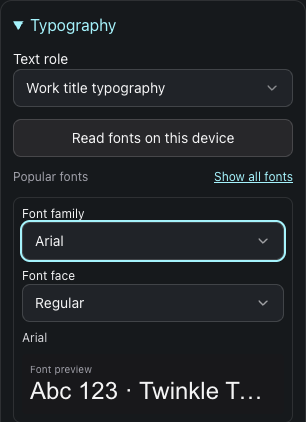
- Connect fonts installed on this device.
- Choose a family to apply its default face immediately.
- Compare the specimen with your film Preview.
6. Sound and your performance
Use score/MIDI sound for a simple film. Instrument choices, MIDI editing, reverb, bass/treble and note/audio timing controls shape playback. If a library project uses a recording, choose Use synthesized MIDI before editing note dynamics; MIDI edits do not change that recording.
Creator enables MIDI performance import/record and its alignment controls. Exporting an attached MIDI performance, separate recording or video soundtrack requires Creator. A library recording used as the normal score soundtrack is handled separately; Export is the final eligibility check.
Without performance MIDI, notation follows score tempo: align audio/video manually. Video sound moves and trims with its picture; a separate recording aligns independently. Preview the result, reselect missing local media, apply or cancel performance auditions and turn off original comparison before export. Add performer footage and annotations to tell your story.
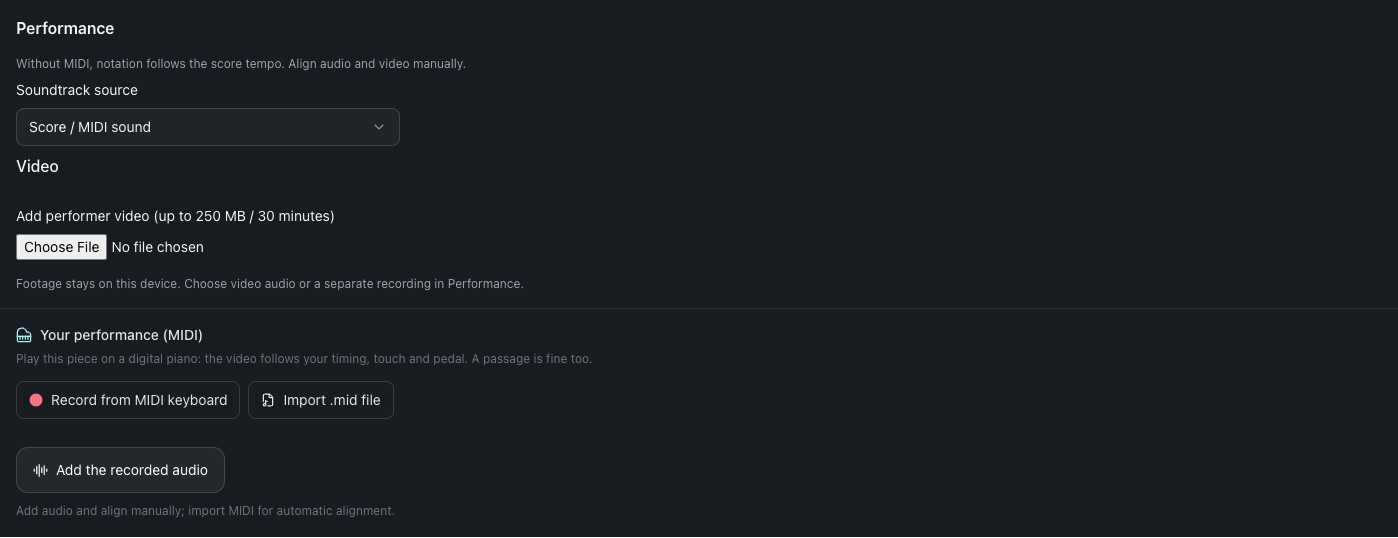
- Choose score sound, a recording or video audio.
- Use Creator to import or record a MIDI performance.
7. Preview and export
Export the whole film or an excerpt. Choose landscape, portrait, square or feed and check the resolution and branding. Free users can preview many Pro visual/camera options, but Export lists paid categories and offers Free alternatives.
Sign in to start exporting. MP4 is used when your browser supports the required video/audio encoders; otherwise WebM is used if VP9 and Opus encoding are supported. If neither format is supported, try another compatible browser. Changes made after exporting appear in your next export.
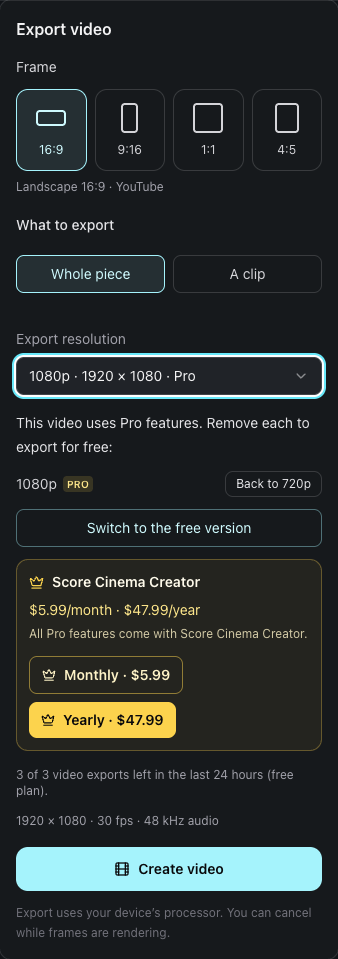
- Choose export resolution and check Free eligibility.
- Start creating the video when ready.
8. Download and reuse your work
Open Output to preview and download your completed video. A theme pack shares visual settings; a cinema package restores film settings, MIDI edits and review state using .scorecinema.zip or the supported JSON format.
A package is not a complete media project. Keep source MusicXML, audio and video separately and reattach matching sources when requested. Photos/background timelines and custom typography remain on the original device; the portable copy uses built-in scenery and default text styling.
Read the portable-copy confirmation before sharing. Packages do not grant access to restricted source scores or unlock Creator features.
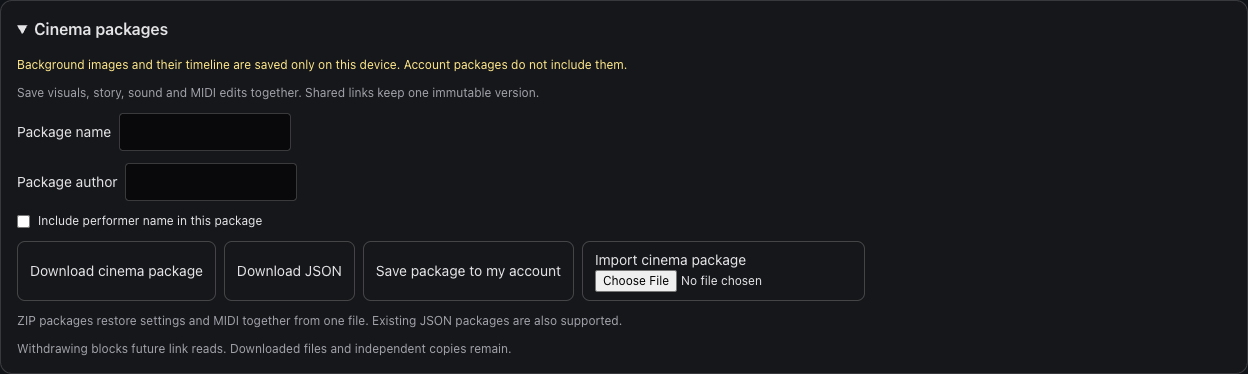
- Read the notice about local photos before sharing.
- Download the settings and MIDI package.
- Import a ZIP or supported JSON package.
Free and Score Cinema Creator
Pro labels refer to Score Cinema Creator. Gallery, local photos, typography and score-MIDI editing can be used in Free-compatible exports. The Export panel checks the settings actually used by your film.
| Capability | Free | Creator |
|---|---|---|
| Resolution | 720p | 1080p |
| Source score length | 5 minutes | 30 minutes |
| Export starts | 3 / 24 rolling hours | Unlimited |
| Score storage | 50 MB | 2 GB |
| MusicXML / MXL | 2 MB | 10 MB |
| PDF storage file | 10 MB | 50 MB |
| Branding | Keep watermark and end card | Remove or customize |
| Gallery, photos and typography | Yes, with Free-compatible settings | Yes |
When do I need Creator?
- 1080p export
- Custom camera timeline
- Attached MIDI performance or separate/video soundtrack
- Remove or customize branding
- Premium visual effects
- Section looks or style mixing
Free export starts count once accepted, including cancelled or failed exports. Opening the Export panel costs no attempt. A short excerpt does not bypass the source score duration limit.
Open Score Cinema →